Mostrando postagens com marcador Twitter. Mostrar todas as postagens

How I Used Industry Leaders On Twitter To Spike My Blog Traffic

Guest Post - Our host is Nick Steeves, Here Nick shows us how he has managed to get huge brands promoting his content.See How To Become a guest author on Spice Up Your Blog.

So you’ve got a blog and you’re picking away at the basics - getting backlinks, optimizing your tags and meta-data and posting to but you’ve yet to see any major spikes in traffic.There are people out there with established audiences which you would love to tap into, but how? These people are bombarded with requests at all hours - how do you get their attention?

Flattery is Your Best Weapon


Everyone loves to share a glowing review about themselves, and thought leaders are no exception.Talking about why someone is successful and how others can emulate them to be successful will get you a much quicker shout-out than simply soliciting one by telling them why you’re so great.

I have done this successfully with a number of large brands on Twitter - most notably DKNY who retweeted me (@GetLocalShopprs) each of the three times I tweeted them over the course of several months.
Click Here To View Full Post >>
0

Neat Triangle Design Social And Rss Icon Gadget For Blogger And Wordpress

Triangle Social Icons GadgetI know we all like to have a unique look to our blogs and some unique icons to display our social profiles and feeds.So here I have a Subscribe and Follow section for your blog using a neat set of triangle social icons.You can add the icons with links to your feed and profiles to your sidebar on Blogger and Wordpress.

The icons are from Design Cauldron and look fantastic,Included in the gadget we have the code for are icons for your Rss Feed, Email Feed, Facebook, Twitter, Google +, Pinterest And YouTube.You can easily remove any of the icons if your not on one or more of the sites.

Below you can see the icons (All connected to our profiles so you can use them to connect with Spice Up Your Blog if your not already), further below that you can follow the link to see them live on a demo blog.

IconIconIconIconFollow Me on PinterestFollow Me on Pinterest


View Demo Button

Add Trinagnle Social Icons Gadget To Your Blog

Click Here To View Full Post >>
0

Using Twitter To Find Guest Post Opportunities

Twitter 3D Logo IconGuest Post - Today's host is Caeden M MacGregor, who looks at Three ways Twitter can help you find high ranking, relevant sites for gust posts.See How To Become a guest author on Spice Up Your Blog.

Since its launch in 2006, Twitter has been the way to communicate what you’re doing, what you’re thinking, and what you’re eating to the world. It’s true; with more than 100 million people logging on every month to tweet their pet pictures, share upcoming local events, and the latest and greatest events in their day, Twitter users share every thought and whim in real-time with their followers.

However, for SEOs and link builders specifically (we use Twitter to identify link building opportunities at the SEO company I work for all the time) Twitter offers more than a simple opportunity to share what pub you’re at or what movie you just caught. Twitter offers much in the way of link building targeting—meaning high ranking, highly followed sites that you can approach for guest post opportunities in exchange for a back link.

As far as making your online presence known to high ranking, relevant sites, Twitter is the place to be…or rather Tweet. This social media platform offers the perfect foundation for you to follow, retweet, and connect with the sites and readers you are targeting just by re-tweeting and replying to their tweets to making your presence obvious. This way, when you approach them with a guest post, they will be more likely to respond and accept it.

Here are three ways you can use Twitter to find guest post opportunities…
Click Here To View Full Post >>
0

Latest Tweet Twitter Bird With Speech Bubble Gadget For Blogger

Using the latest Twitter API it's become easy to create a neat latest tweets gadget.In this post i will show you how to add a Twitter bird with a speech bubble containing your latest tweet to your blog.The idea comes from Paulund.co.uk and all that's needed is some Css and a few lines of script.

View Demo Button

Add The Latest Tweet Twitter Bird To Your Blog


Remember Always Back Up Your Template Before You Make Changes - How To Back Up A Blogger Template

Step 1. In Your Blogger Dashboard Click Design > Template Designer, Then Advanced > Add Css


Step 2. Copy and Paste the following code into the Css section (See Paste Code Here Above)

#twitter_update_list{
list-style:none;
}
#twitter_update_list li{
background: #f4f8f9; /* Old browsers */
background: -moz-linear-gradient(top, #f4f8f9 1%, #e8f0f2 100%); /* FF3.6+ */
background: -webkit-gradient(linear, left top, left bottom, color-stop(1%,#f4f8f9), color-stop(100%,#e8f0f2)); /* Chrome,Safari4+ */
background: -webkit-linear-gradient(top, #f4f8f9 1%,#e8f0f2 100%); /* Chrome10+,Safari5.1+ */
background: -o-linear-gradient(top, #f4f8f9 1%,#e8f0f2 100%); /* Opera11.10+ */
background: -ms-linear-gradient(top, #f4f8f9 1%,#e8f0f2 100%); /* IE10+ */
filter: progid:DXImageTransform.Microsoft.gradient( startColorstr='#f4f8f9', endColorstr='#e8f0f2',GradientType=0 ); /* IE6-9 */
background: linear-gradient(top, #f4f8f9 1%,#e8f0f2 100%); /* W3C */
box-shadow: 1px -1px 2px #bbc6c8;
-webkit-box-shadow: 1px -1px 2px #bbc6c8;
-moz-box-shadow: 1px -1px 2px #bbc6c8;
border-radius:7px;
-moz-border-radius:7px;
-webkit-border-radius:7px;
padding:15px;
width:250px;
}

#twitter_update_list::after {
content: "";
position: relative;
left: 30px;
border-width: 15px 15px 0;
border-style: solid;
border-color: #e8f0f2 transparent;
display: block;
width: 0;
}

Step 3. Thats the Css added now return to the design page and click Add A Gadget > Choose Html / Javascript


Step 4. Copy and Paste the following code into the Html/Javascript gadget

<ul id="twitter_update_list">
<li>Loading Tweets..</li>
</ul>
<a title="Follow Me" href="http://www.twitter.com/paulcrowepro" target="_blank"><img src="https://blogger.googleusercontent.com/img/b/R29vZ2xl/AVvXsEg0o_2fO7yiWFkhec2KC3J_ZrRNrlEbvmjr-396mm9aOyarwwkEZJHKIg7wEHyjbJ8f7qbytGCZObcJlFMtfrsNF_77p0Qf3fcVCKP1GjSYPzqbnNeBKzpofUXzqSJhEyZSJt0fq5CR5SeK/s1600/twitter-bird-gadget.png" /></a>
<script type="text/javascript" src="http://twitter.com/javascripts/blogger.js"></script>
<script type="text/javascript" src="http://twitter.com/statuses/user_timeline/paulcrowepro.json?callback=twitterCallback2&count=1"></script>

Important - Change my Twitter username paulcrowepro x2 with yours.

Step 5. Click Save and check out your new Twitter gadget.

That's it a very simple yet stylish latest tweet gadget, make sure to check out more of our Twitter Gadgets And Tutorials.Thanks again to Paulund.co.uk

Drop Your Comments And Questions Below.
0

How To Automatically Bookmark Your Blog Posts On Delicious Via Twitter

3d Delicious IconIn this Blog Tip i will show you how you can have your posts automatically Bookmarked on Social Bookmarking website Delicious.Delicious is a very popular social bookmarking site used to store bookmarks of your favorite pages online.Delicious was bought by Yahoo in 2005 and in what seems to have been a very low key transaction Yahoo actually sold Delicious in April this year (2011) to AVOS Systems, a company owned by Chad Hurley and Steve Chen the founders of YouTube.Delicious is often used as a gage of a blogs popularity including on advertising site BuySellAds were the number of bookmarks for each site is listed.OK so enough of the history lesson lets see how to automatically bookmark your blog posts on Delicious.
Click Here To View Full Post >>
0

Add The Brand New Official Twitter One Click Follow Button To Your Blog

twitter developers follow buttonTwitter developers today released a brand new shiny follow button for Blogs and Websites.The new Twitter follow button has dispensed with the pop up window to view the profile of the user in order to click Follow.Now when added to your blog as long as readers are logged in to Twitter when you click follow they are following you.Basically it works like the Facebook fan page like button, click and your done.This looks like good news for Bloggers looking to increase there Twitter followers, anything that makes it easier for people to follow you has to be good.The new button also has a few extra options like choosing a light or dark color scheme to suit your blog, display your follower count beside the button and also you can choose the language.

Live Demo - Below id a working demo of the new button, click Follow and your automatically following me (If your not logged in you get a log in option):


Pretty Cool..

Get The New Twitter Follow Button For Your Blog


Simply follow the link to the Twitter Developers page, choose your options and grab your code - Twitter Developers New One Click Follow Button.

Add The Button To Your Blog


The Twitter One Click button uses html and javascript so for all blog platforms you can put the button anywhere that accepts Javascript which is pretty much everywhere.Here are some steps to place it in your Blogger sidebar and above or below posts.

Blogger Sidebar

On Blogger go to your Design Page > Click Add A Gadget > Choose Html/Javascript and paste in the code then save.

Above Posts

On Blogger Go To Design > Edit Html > Tick Expand Widget Templates.

Find the following piece of code in your blogs Html : (Click Ctrl and F for a search bar to help find the code - More Info)

<div class='post-header-line-1'>

Paste your button code Directly Below <div class='post-header-line-1'> the save your template.

Below Posts

On Blogger Go To Design > Edit Html > Tick Expand Widget Templates.

Find the following piece of code in your blogs Html : (Click Ctrl and F for a search bar to help find the code - More Info)

<div class='post-footer-line post-footer-line-1'>

Paste Your Button Code Directly Below <div class='post-footer-line post-footer-line-1'> then save your template.

Once again we are bringing you the latest releases as they happen so Make Sure To Follow Us For Updates with our new shiny one click button !


Drop Your Comments And Questions Below.
0

Polaroid Icons Blog Subscription Gadget With Rollover Effect

The other day i posted 3 very cool sets of icons you could use to let people subscribe to your Rss Feed, Twitter and Facebook Page.In that post i gave you the code for the icons ready to use, you just had to add your URLs then copy and paste.Two of the icon sets were very similar both having a Polaroid Picture Design.One was fresh and bright while the other had a vintage worn look.This lead me to thinking wouldn't it be cool to have the worn vintage Polaroid icons in your sidebar and when someone hovers over them they switch to the bright clean icon.This is called a rollover effect. I'm sure you have seen image rollover effects before and this is a great way to use it.
Click Here To View Full Post >>
0

Three Cool Blog Subscription Gadgets With Unique Icons


This week while doing a few jobs on blogs i added some very cool subscription icons to the sidebars.The icons link to the Rss Feed and Facebook and Twitter profiles for the blog.Pop the new Blogger Follow By Email Form gadget below the icons and you have all the main subscription options offered to readers.Anyway the icons look great one set is in the design of Polaroid photographs, the second set is the Polaroid Photograph Design but with a worn vintage feel and the third are very bright and colorful with a slight 3d look.I thought some readers of Spice Up Your Blog might like them so i have the code here and instructions to add them to your blog.The demo icons are connected to our Rss, Facebook and Twitter so you can check them out and subscribe, Like and Follow if you ain't already.
Click Here To View Full Post >>
0

Amazing Animated Flying Twitter Bird Gadget For Blogger

animated twitter bird widget blogger
Guest Post - In this post Dasari Harish will show you how to have a stunning Twitter bird Fly around your blog pages, landing randomly in view of visitors to Share your posts and Follow you.

"Twitter", is one of the most popular Social networking sites in the world among Bloggers to promote their blogs.There are a number of twitter widgets, scripts and plugins available to integrate Twitter with your blog.Most of the icons, buttons or badges are stationary or a fixed floating Twitter gadgets.Now here i have a very cool unique Blogger Twitter widget, an actual Animated flying Twitter Bird that flies around your blog.

This Plugin is java script based and it will display an animated Twitter bird that settles on different places of your blogs visible area. If a you scroll the page, the bird will fly towards the visible part and settle in a new place and it takes random paths for each flight.When you place the cursor over the Twitter Bird "tweet this" and "follow me" links appear,through this the visitor can tweet the article or follow you.


Demo:-You can see the Twitter Bird Flying Around this page visible Area, Scroll this Page to see it's Action.

Add The Flying Twitter Bird To Your Blog


There are Two types here is am giving.You can have the Bird on every page of your blog or just on the post pages..

1. Twitter Bird with tweet text has Post title and URL for all post pages Only.
2. Twitter Bird with tweet text has Current Page title and URL for all Blog pages.

Add Flying Twitter Bird To Post Pages Only

1. Go to Your Blogger Dashboard Click > Design > Edit Html
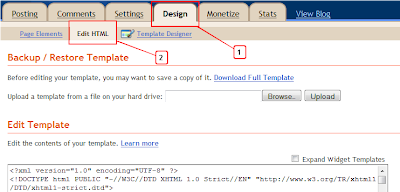
Design Edit Html Blogger

Step 2. Find the following piece of code in your blogs Html : (Click Ctrl and F for a search bar to help find the code - More Info)

</body>

3. Copy and paste the following ocde directly Below / After </body>

<b:if cond='data:blog.pageType == &quot;item&quot;'>
<!-- Twitter Bird Widget for Blogger by Way2blogging.org -->
<script type="text/javascript" src="http://bloggerblogwidgets.googlecode.com/files/way2blogging.org-tripleflap.js">
</script>
<script type="text/javascript">
var twitterAccount = &quot;Your Twitter User Name Here!&quot;;
var tweetThisText = &quot; <data:blog.pageTitle/>: <data:blog.url/> &quot;;
tripleflapInit();
</script>
<span style="font-size:11px;position:absolute;"><a title='Blogger Widget by Way2blogging.Org' href="http://www.way2blogging.org" target='_blank'><img border='0' src='http://img1.blogblog.com/img/blank.gif'/></a></span><a href="http://www.spiceupyourblog.com" target="_blank">Twitter Bird Gadget</a>
<!-- Twitter Bird Widget for Blogger by Way2blogging.org -->
</b:if>

Important Note:-
Replace Your Twitter User Name Here! with your twitter user name.You add just the username not the entire URL of your Twitter profile.For example twitter.com/paulcrowepro , paulcrowepro is the username.


4. Save Your template And Check Out Your Twitter Bird.

Add Flying Twitter Bird To All Pages


1. Go to Your Blogger Dashboard Click > Design > Edit Html :

Design Edit Html Blogger

Step 2. Find the following piece of code in your blogs Html : (Click Ctrl and F for a search bar to help find the code - More Info)

</body>

3. Copy and paste the following code Directly Below / After </body>

<!-- Twitter Bird Widget for Blogger by Way2blogging.org -->
<script type="text/javascript" src="http://bloggerblogwidgets.googlecode.com/files/way2blogging.org-tripleflap.js">
</script>
<script type="text/javascript">
var twitterAccount = &quot;Your Twitter User Name Here!&quot;;
var tweetThisText = &quot; <data:blog.pageTitle/>: <data:blog.url/> &quot;;
tripleflapInit();
</script>
<span style="font-size:11px;position:absolute;"><a title='Blogger Widget by Way2blogging.Org' href="http://www.way2blogging.org" target='_blank'><img border='0' src='http://img1.blogblog.com/img/blank.gif'/></a></span><a href="http://www.spiceupyourblog.com" target="_blank">Twitter Bird Gadget</a>
<!-- Twitter Bird Widget for Blogger by Way2blogging.org -->

Important Note:-
Replace Your Twitter User Name Here! with your twitter user name.You add just the username not the entire URL of your Twitter profile.For example twitter.com/paulcrowepro , paulcrowepro is the username.

4. Save Your template And Check Out Your Twitter Bird.

Final Words

I Hope you Liked this post and don't forget to share this article with your network. :).Thanks to Paul Crowe for inviting me to write a Guest post on his Great Blog.


guest blog postBy Guest Author -Dasari Harish is the Author of Way2Blogging.org, were he provides Blogger Gadgets and Tutorials. You can also follow Dasari Harish On Twitter.


0

Text Wrapped Twitter And Facebook Buttons At Top Of Posts

Today as i was replying to the Emails from my contact form i got a bit of a surprise.One Email asked "I like to add Facebook share and tweet buttons to my blog post same like your blog (share and tweet buttons at the beginning of the post text). thanks:)".So i went to my list of posts page for Spice Up Your Blog to get the link to the tutorial for this to send back.Then i realised i have never actually covered it in a post.

I have showed how to have a Twitter counter at the top of your posts and even a Ttwitter and Facebook button in a fixed floating position, but not how to have the Twitter and Facebook Counter Buttons at the start of posts wrapped in text.It's actually quiet an easy tutorial..

So lets do it !

The Twitter button i will be using is the Most recent updated Twitter Button that includes a link to your Twitter Profile.You will see if you use the Twitter button on any of the posts in this blog the link you post on Twitter includes a link to my Twitter Profile and once you share the link you are given the option to follow me (If Your Not Already).So the button not only gets people sharing your posts but also gets you more followers.The facebook button is the standard counter button not the Like Button.

I am using these buttons at the time of writing the post but as you know I'm always changing so for future reference i have a live demo below.

Live Demo - Twitter And Facebook Button Demo

Add Twitter And Facebook Buttons To Blogger


Step 1. In Your Blogger Dashboard Click > Design > Edit Html > Tick The Expand Widget Templates Box.


Step 2. Find the following piece of code in your blogs Html : (Click Ctrl and F for a search bar to help find the code - More Info)

<data:post.body/>

Step 3. Copy And Paste The Following Code Directly Before / Above <data:post.body/>

<div style='float:left; margin-right:10px;'>
<a class='twitter-share-button' data-count='vertical' data-via='PaulCrowePro' href='http://twitter.com/share'>Tweet</a><script src='http://platform.twitter.com/widgets.js' type='text/javascript'/><br/>
<a href='http://www.facebook.com/sharer.php' name='fb_share' type='box_count'>Share</a><script src='http://static.ak.fbcdn.net/connect.php/js/FB.Share' type='text/javascript'/><br/><a href='http://www.spiceupyourblog.com'><img alt='Best Blogger Tips' src='https://blogger.googleusercontent.com/img/b/R29vZ2xl/AVvXsEhXwDQBkV-dP7LhydxyuxCOyhOTRw_6jtGHxR0_MtA9n_IuR4Fp2ZZ1KSoVo1tFQoDaSGMEYUeuPBUUA1-8YVoXRmqjHEsMNDgjiBZf9cqVbslomIFuB4irXi45b_YW4LTKRwKcmM5CAV0P/s1600/best+blogger+tips.png'/></a>
</div>

Important - Replace My Twitter Username In Red PaulCrowePro With Yours, If you don't have one Leave It Blank.

Step 4 Save Your Template.

The buttons will now be at the start of all your posts for readers to share your content, we have lots more Social Bookmarking Gadgets for you to check out.

Drop Your Comments, Views And Questions Below.
0

Great New Twitter Count Button With Username And Suggest Follow Features

twitter counter buttonWe all know how popular the Twitter Count Buttons are as we see them on the majority of blogs.They are the small button you can click to share a post on Twitter and they also display the number of times the post has already been shared.The button you see on most blogs and the button i showed you how to add to Blogger in a previous post is from Tweetme.While that button does exactly as you expect in allowing readers to share your posts on Twitter and display the number of shares a newer button from twitter does even more.

The Twitter count button i will show you in this post has a few cool extras.With the Tweetme button when users shared your posts they would have "Via @Tweetme" at the end, with this button you can have your Twitter username at the end.

Instead of this :

6 Ways to Stay Focused While Blogging From Home | Spice Up Your Blog http://t.co/AMkr2O3 via @Tweetme

You Get This :

6 Ways to Stay Focused While Blogging From Home | Spice Up Your Blog http://t.co/AMkr2O3 via @PaulCrowePro

So not only are people sharing your post they are also sharing your Twitter Profile resulting in more Followers.

Secondly after a reader Tweets your post they will be Given the option to Follow you.The pop up window to tweet the post, first displays the Tweet then displays a Follow option as shown below.


A button that gets more people viewing your blog and more people Following you on  Twitter, Great lets add it to your blog.You can try out the button at the top left of this post to see it in action.I will show you the code for the button and how to add it to the top left wrapped in text as you see on this blog.

Add New Twitter Counter Button To Blogger


Step 1. In Your Blogger Dashboard Click > Design > Edit Html > Tick The Expand Widget Templates Box.


Step 2. Find the following piece of code in your blogs Html : (Click Ctrl and F for a search bar to help find the code - More Info)

<data:post.body/>

Step 3. Copy And Paste The Following Code Directly Above / Before <data:post.body/>

<b:if cond='data:blog.pageType == &quot;item&quot;'>
<div style='float:left; margin-right:10px;'><a href='http://www.spiceupyourblog.com'><img alt='Best Blogger Tips' src='https://blogger.googleusercontent.com/img/b/R29vZ2xl/AVvXsEhXwDQBkV-dP7LhydxyuxCOyhOTRw_6jtGHxR0_MtA9n_IuR4Fp2ZZ1KSoVo1tFQoDaSGMEYUeuPBUUA1-8YVoXRmqjHEsMNDgjiBZf9cqVbslomIFuB4irXi45b_YW4LTKRwKcmM5CAV0P/s1600/best+blogger+tips.png'/></a>
<a class='twitter-share-button' data-count='vertical' data-via='TWITTER-USERNAME-HERE' href='http://twitter.com/share'>Tweet</a><script src='http://platform.twitter.com/widgets.js' type='text/javascript'/></div></b:if>

Important : Replace TWITTER-USERNAME-HERE With your actual Twitter Username.

Note : The button is set only to be displayed on the post pages, if you want the button to also be displayed on the home page remove the code in red.

Step 4. Save your template, your Twitter button has been added to your blog.Remember you can add the code in your sidebars in a Html/Javascript gadget or other sections of your template.

Check out more of our Twitter Tips And Blog Gadgets.

Comments, Views And Questions Welcomed Below.
0

Awesome New Fixed Scroll Follow Us On Twitter Badge For Blogger

It's unlikely you will find a blog that does not have a link to their Twitter page.In fact many blogs i now visit have a Follow on Twitter image fixed to the side of the page that stays fixed as the reader scrolls.The image most blogs have fixed on the edge of the page has become standard and i actually published a post back in January 2010 with that Fixed Follow On Twitter Image.But with every blog using the same image it becomes invisible to readers.So in this post i have an awesome fully transparent Follow on Twitter image i know you will love.The image has the Twitter bird on a branch with a small Follow Us On Twitter board Below.The image will really catch the eye of visitors to your blog and get more people following your blogs updates on Twitter.We will add the image to the right side of your blog and as i said it will stay fixed in position as the reader scrolls.Lets look at the screenshot and Live demo.

Screenshot :

fixed transparent follow us on twitter

Live Demo - Click To See The Demo : Fixed Follow On Twitter Badge

Add The New Transparent Fixed Follow On Twitter Image


Step 1. In Your Blogger Dashboard Click > Design > Add A Gadget > Choose Html/Javascript.


Step 2. Copy and paste the code below into the html/javascript gadget

<a href='http://www.spiceupyourblog.com'><img alt='Best Blogger Tips' src='https://blogger.googleusercontent.com/img/b/R29vZ2xl/AVvXsEhXwDQBkV-dP7LhydxyuxCOyhOTRw_6jtGHxR0_MtA9n_IuR4Fp2ZZ1KSoVo1tFQoDaSGMEYUeuPBUUA1-8YVoXRmqjHEsMNDgjiBZf9cqVbslomIFuB4irXi45b_YW4LTKRwKcmM5CAV0P/s1600/best+blogger+tips.png'/></a><div style='position: fixed; bottom: 20%; right: 0%;'/><a href="http://www.twitter.com/paulcrowepro" target="_blank"><img src="https://blogger.googleusercontent.com/img/b/R29vZ2xl/AVvXsEhsYx1qdabMQTvboq1J3aCnrxHyKVMnDk1wZ62U_L2Aa-tpZXpNIkhSpM7VowzuSA2JsikfbkbUnZLHkO7eu9QKQsAZxPBqRlh4CAiFG7kF8rOjy7iWHtAHv-zH0dyGczXpxvdchdIyeWkK/s1600/follow+on+twitter+float.png" /></a></div><a href="http://www.spiceupyourblog.com" target="_blank">Fixed Twitter Gadget</a>

Important - Change the twitter Username in red To Your Twitter Username.

With the code in place save the gadget and your Follow us on twitter image will be fixed on the side of your blog.I'm sure this will help you get more Twitter followers following your Blogs updates.Make sure to Follow Us On Twitter and check out more of our Twitter Tips and Tricks.

Drop Your Comments, Views And Opinions Below.
0

7 Colored Twitter Counter Buttons For Blogger

color tiwtter buttonsThe basic twitter counter button is probably the most popular social bookmarking tool used by Bloggers.Allowing readers to Tweet and ReTweet blog posts with the numbers displayed you usually find the buttons floating at the top and bottom of blog posts.With so many blogs using the twitter counter button they have almost become invisible to readers so adding a different looking retweet button to your blog seems like a great idea.In this post i will show you how you can choose from a selection of colored  Twitter counter buttons and add one to your blog.We will see how to float the colored Twitter button at the top of your posts wrapped in text, at the foot of your posts or on other sections.These buttons are from Twittley and as an added bonus when readers Tweet your posts they are also listed on the Twittley website.If you just want the standard Twitter Counter Button Click Here.


color twitter counter button blogger


Add Colored Twitter Counter Button To Blogger

Step 1. In your dashboard click 'Design' > 'Edit Html' > Tick the 'Expand Widget Templates' Box.


Step 2. Find the following piece of code in your blogs Html : (Click Ctrl and F for a search bar to help find the code - More Info)

<data:post.body/>

Step 3. Pick the color Twitter button you want and add the code for your choosen button Directly Above / Before <data:post.body/>

Note - All The Buttons Are Working Try Them Out !

1. Blue Twitter Counter Button.

<div style='float:left; margin-right:3px;'>
<script>var twittleystyle = "0";</script><script src='http://twittley.com/button/button.js'/>
</div>

2. Green Twitter Counter Button.

<div style='float:left; margin-right:3px;'>
<script>var twittleystyle = "1";</script><script src='http://twittley.com/button/button.js'/>
</div>

3. Orange Twitter Counter Button.

<div style='float:left; margin-right:3px;'>
<script>var twittleystyle = "2";</script><script src='http://twittley.com/button/button.js'/>
</div>

4. Pink Twitter Counter Button.

<div style='float:left; margin-right:3px;'>
<script>var twittleystyle = "3";</script><script src='http://twittley.com/button/button.js'/>
</div>

5.Red Twitter Counter Button.

<div style='float:left; margin-right:3px;'>
<script>var twittleystyle = "4";</script><script src='http://twittley.com/button/button.js'/>
</div>

6. Purple Twitter Counter Button.

<div style='float:left; margin-right:3px;'>
<script>var twittleystyle = "5";</script><script src='http://twittley.com/button/button.js'/>
</div>

7. Yellow Twitter Counter Button.

<div style='float:left; margin-right:3px;'>
<script>var twittleystyle = "6";</script><script src='http://twittley.com/button/button.js'/>
</div>

Twitter Button Position

OK i have added code to the buttons to make them float at the top left of your posts.If thats were you want your button save your template and your done.Here are other placement options :

Float the buttons at the top right of your posts - Change float:left to float:right & change margin-right to margin-left.

Position the buttons at the bottom of your posts - Place your button code Below / Under the <data:post.body/> code you found (You can use the same technique as above to move the button to the left and right).

Use the button elsewhere on your Blog - Only use the middle section of code like this : <script>var twittleystyle = "5";</script><script src='http://twittley.com/button/button.js'/>

That's your seven coloured Twitter counter buttons, let us know what you think by adding a comment below !
0

Professional Twitter Feed Gadget With Thumbnails

Twitter Gadget
There are many Twitter updates and Twitter feed gadgets you can use on your blog to display you latest Tweets.In this post we will look at the gadget available from Publitweet, a brand new gadget that has a more in dept professional look.This Twitter gadget is easy to generate and use on your blog and you can place it in your sidebar, footer etc..One of the factors that make this Twitter gadget unique is it generates a Thumbnail from the links you share if available.So if you share a link to your latest blog post to Twitter Publitweet will grab a thumbnail from the post and add beside the tweet in the gadget.Also there is a re tweet button and a facebook share button beside your tweets, now people can re tweet your updates from the gadget ! Sounds Great lets look at a screenshot and see how you can get yours.

Screenshot - Here is a screenshot of a gadget with my Twitter updates :

professional twitter gadget

You can see the live gadget here - @PaulCrowePro Twitter Updates


Get Your Publitweet Gadget

Step 1. The first step is to generate the Twitter gadget displaying your Twitter updates.To do this copy the URL below and put it in the address bar of your browser.Change YOUR-TWITTER-USERNAME with your actual Twitter username and click enter or go :
(Place The Link In The Address Bar At The Very Top Of Your Screen)

http://beta.publitweet.com/YOUR-TWITTER-USERNAME

Here is how it looks with my Twitter username :

http://beta.publitweet.com/paulcrowepro

Once you click Enter you will go to the same page as the screenshot and preview above but it will have your Twitter updates.On the right you will see 'Embedd This Feed' with some code below.Copy the code and head back to your blog..

Add The Twitter Gadget To Blogger

Step 1. In your Blogger dashboard click 'Design' > 'Add A Gadget' > Choose 'Html/Javascript' from the gadget list :


Step 2. Paste the code for your Twitter gadget into the Html/Javascript gadget and save.Now drag and drop the gadget into place on your design page.

Note - Here are some of the elements you can change in your gadget, they explain themselves :

headerBackground : '#white',
borderColor : '##CCC',
width : 500,
height : 600   

Make Sure To Follow Me On Twitter Here @PaulCrowePro

That's it you now have a professional Twitter feed gadget on your blog letting readers see your latest tweets, retweet and share you updates and Follow you.Check out our other Twitter Gadgets and Tips. Enjoy !
0

Auto Share Your Posts On 35 Social Networks

When you add a new post to your blog you want to update your friends and followers on Social Networks and Social Bookmark sites.The more sites you share your latest post on the more visitors you get to your blog but updating lots of sites often takes longer than writing the post in the first place.

That's were ping service Ping.Fm comes in.Ping.Fm can automatically update 35 social network and bookmarking websites with one click.So when you publish your latest post you can auto update Facebook, Facebook Pages, Twitter, Google Buzz, Myspace, LinkedIn, Posterous, Delicious and more..


Click Here To View Full Post >>
0
 
Support : como fazer
Template Modify by Creating Website
Proudly powered by Blogger